A Running Journal for Android

Write Down
the Day You Ran

Your distance, route and the songs you heard, kept with each run. Add your own words and photos later.

  1. RunRoute and songs recorded
  2. Keep ItThe day becomes a page
  3. Look BackYour routes build up
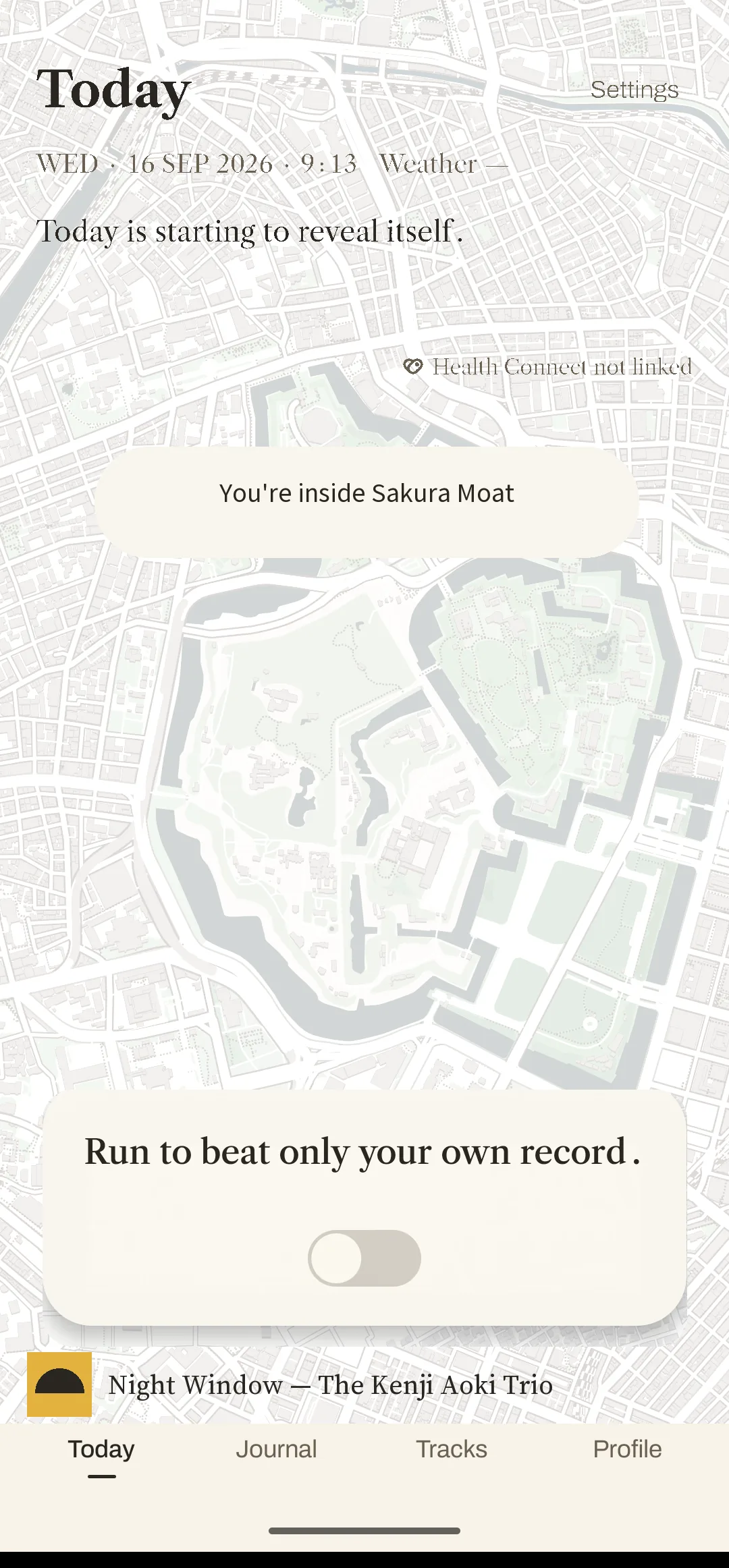
The Today screen: the name of the area you’re in, a line encouraging you to start, and an on/off switch.
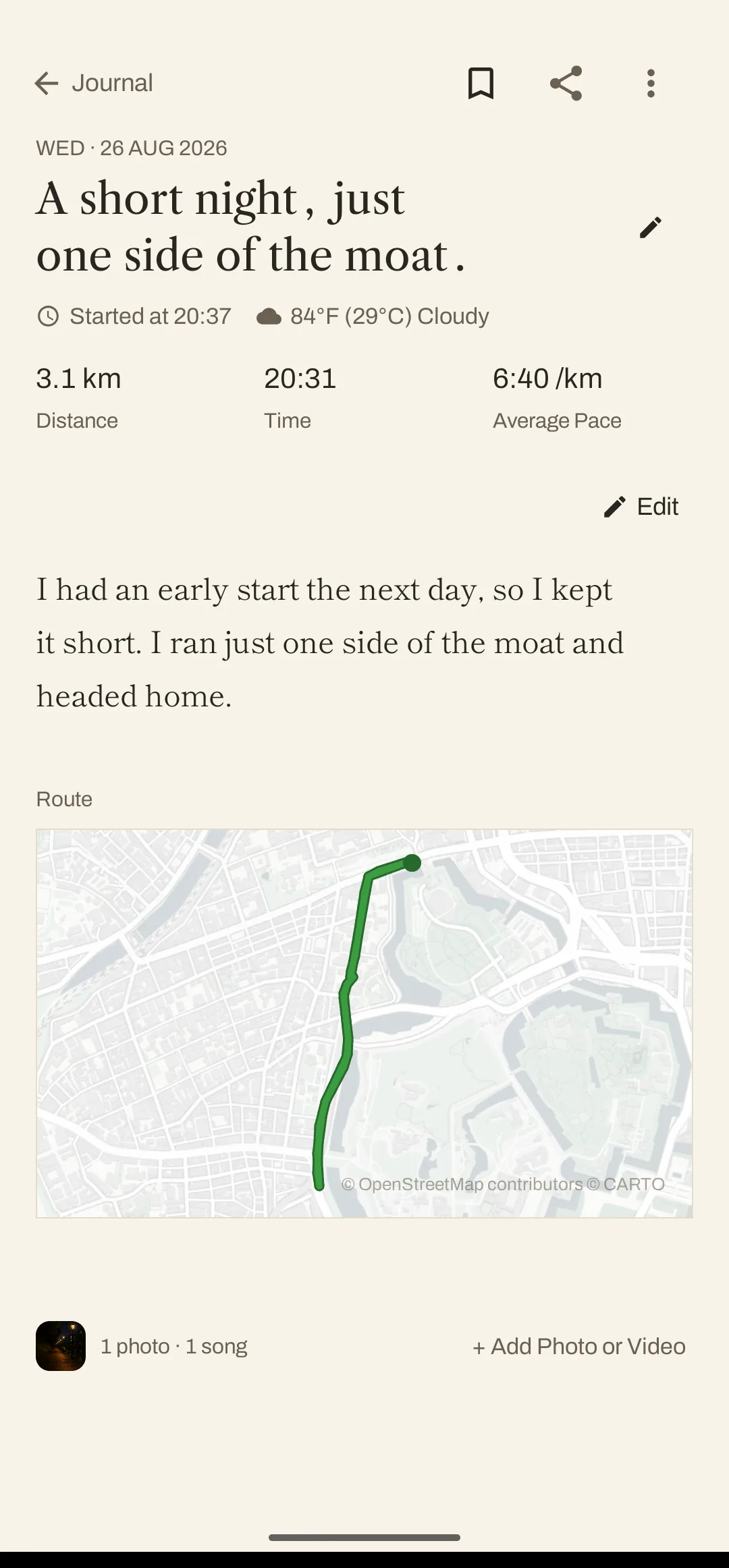
A journal entry (sample record), titled “A short night, just one side of the moat.”: 3.1 km in 20:31, the runner’s own words, and the route on a map.
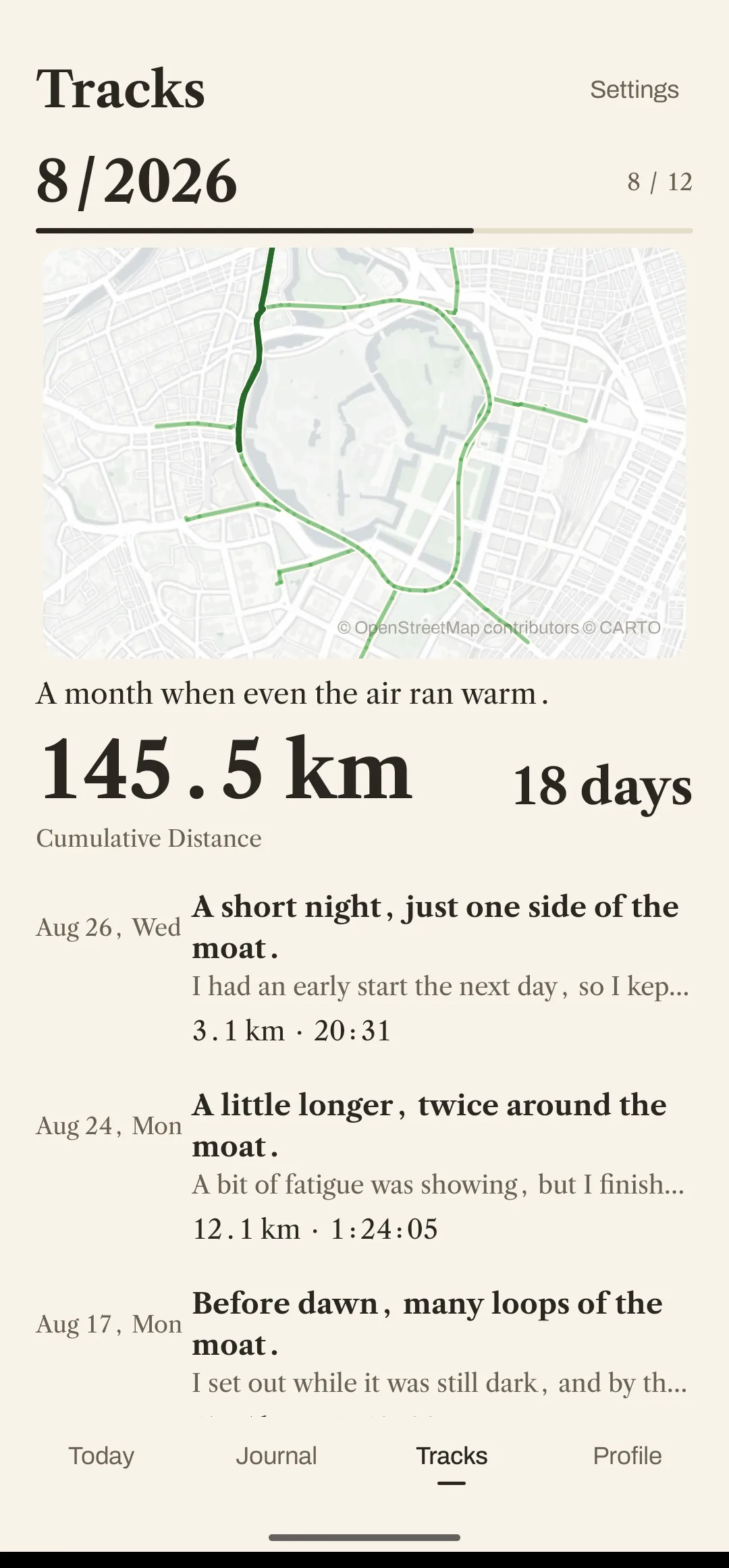
The tracks screen (sample records): every route run that month drawn over one map, with the cumulative distance and day count below it, then the days that month was run.

Free · No ads · No Haruki account Get it on Google Play
A Run Becomes
a Page.

Finish a run and the date, the distance and the route are already a page. Add your own words and photos to it afterwards.

The temperature, the weather and the song you were listening to stay on the same page, so months later it still brings the day back.

A journal entry (sample record), titled “A short night, just one side of the moat.”, started at 20:37, 84°F (29°C) cloudy, distance 3.1 km, time 20:31, average pace 6:40 /km. Below it the runner’s own words — “I had an early start the next day, so I kept it short.” — then the route on a map, the day’s photo and “1 photo · 1 song” at the bottom.
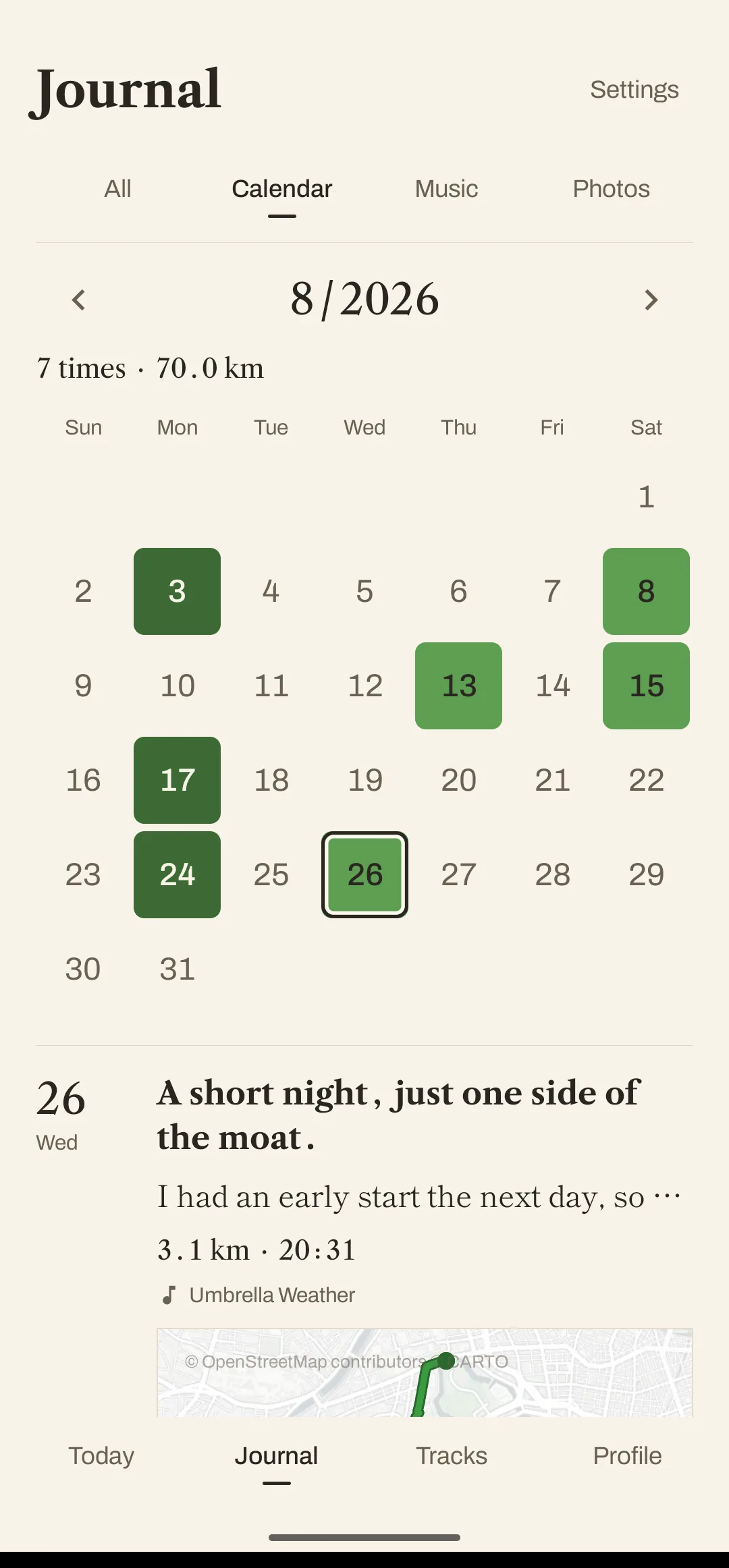
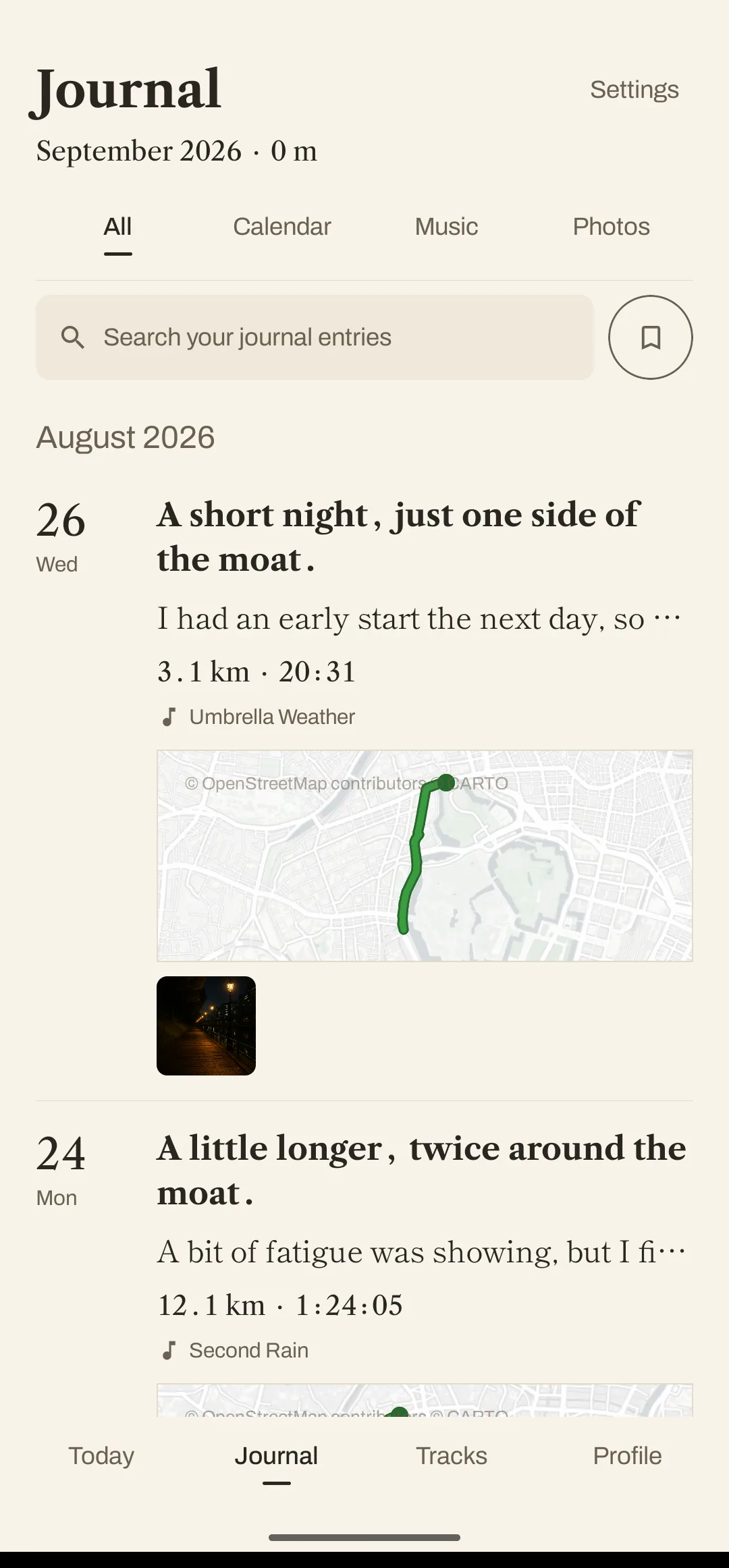
The journal list (sample records). Under the month heading, each day’s record holds its title, the opening words, distance and time, the song, the route on a map, and a photo from that day.
A Journal Entry / the List (Sample Records)

The Same Roads.
A Different Day.

Run the same loop as often as you like — the weather and the mood are never quite the same. Month by month the roads lay over each other, and the days you kept going become the thickness of it.

No rankings, no challenges.

The tracks screen (sample records): every route run that month drawn over one map, with the cumulative distance and day count below it, then the days that month was run.
The calendar tab of the journal (sample records): a month with the days you ran filled in, and the record for the day you pick.
Tracks / calendar — roads laid over each other, and a day picked out of the month.

Back to the Songs
from That Day

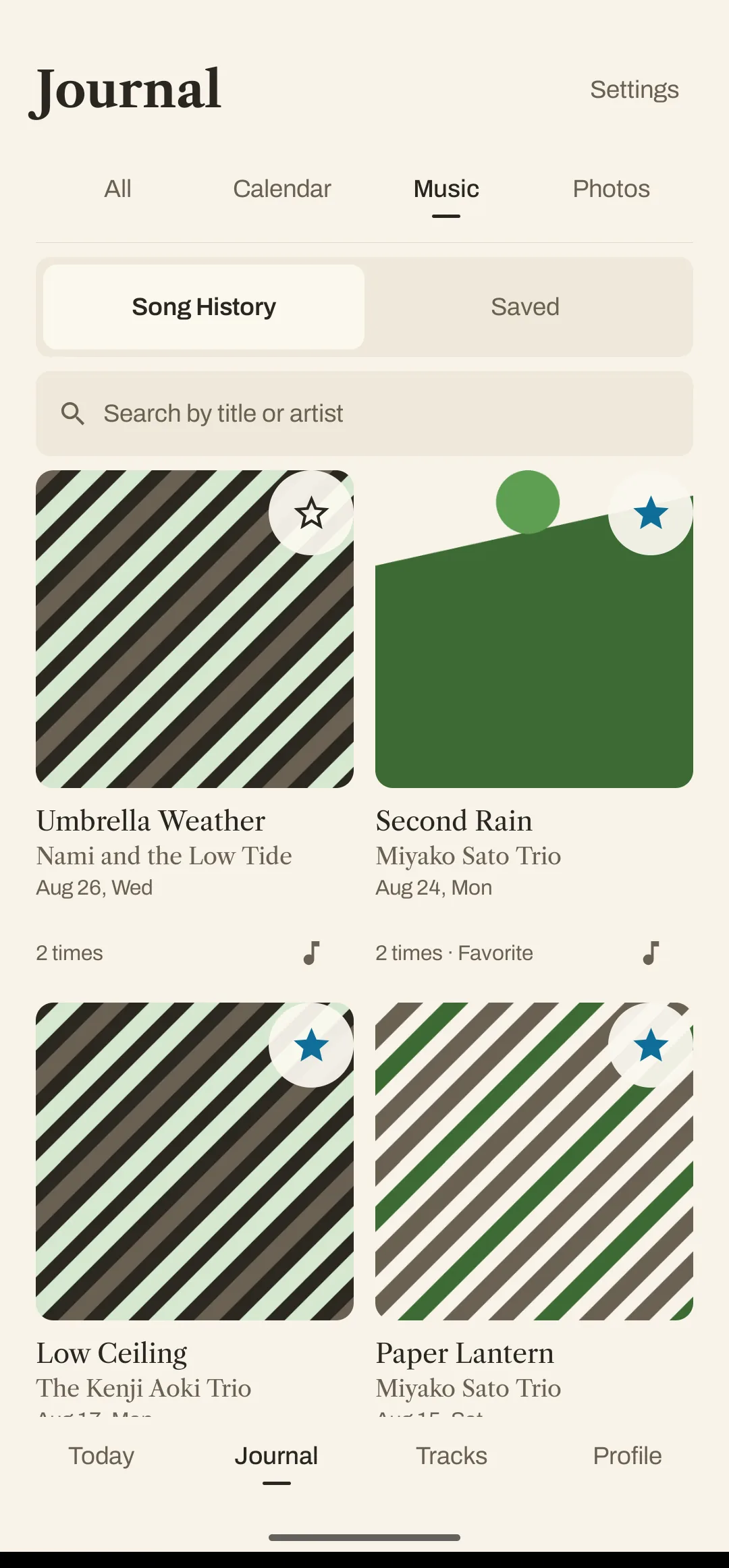
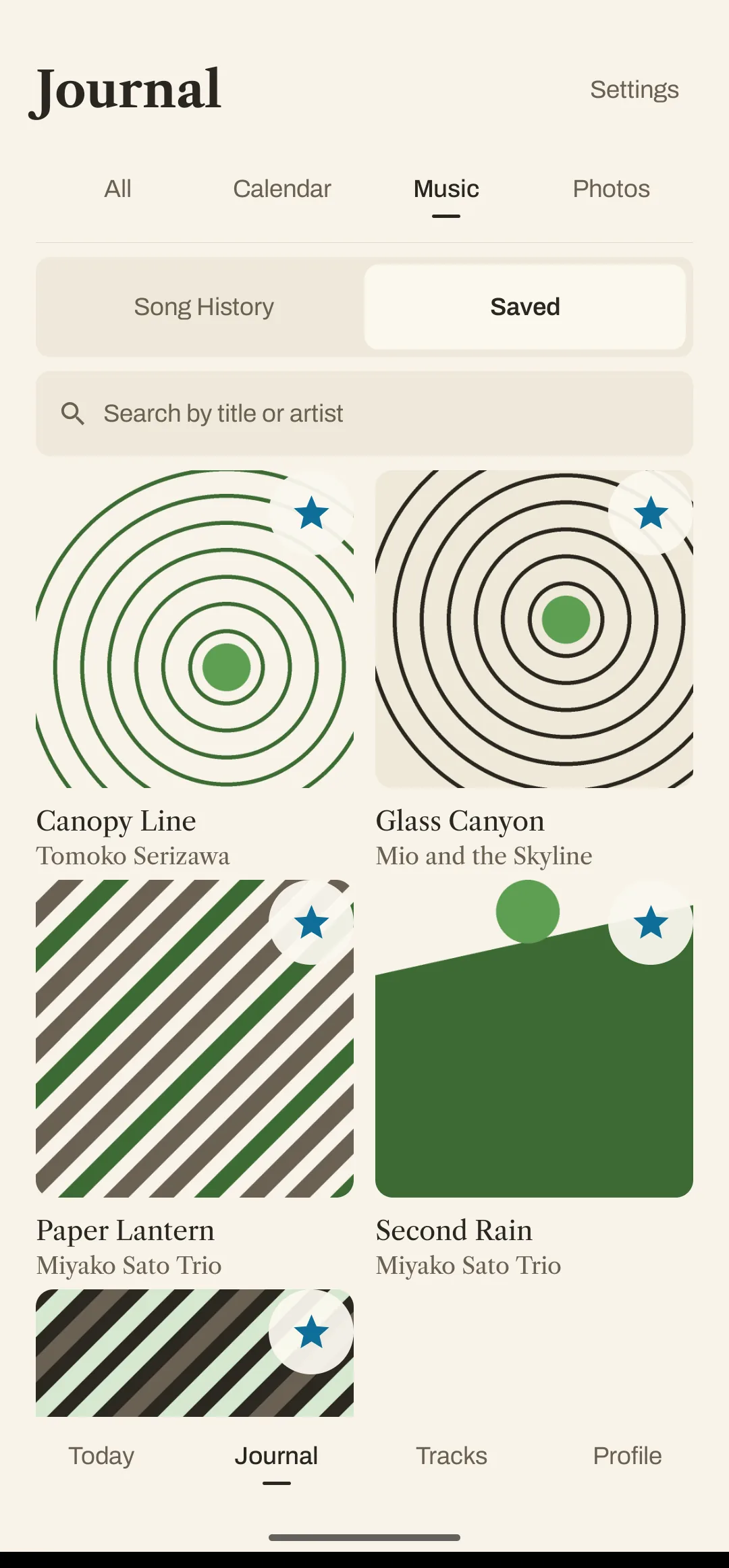
The songs you heard while running stay with that day's record. Star the ones worth keeping and they collect under Saved.

Song recording requires notification access. Available information varies by music app.

The journal’s music tab, with History and Saved tabs, listing songs by the date they were heard.
The same screen’s Saved tab, listing only the songs you’ve starred.
Song History / Saved

Getting Started
Takes as Little as Possible

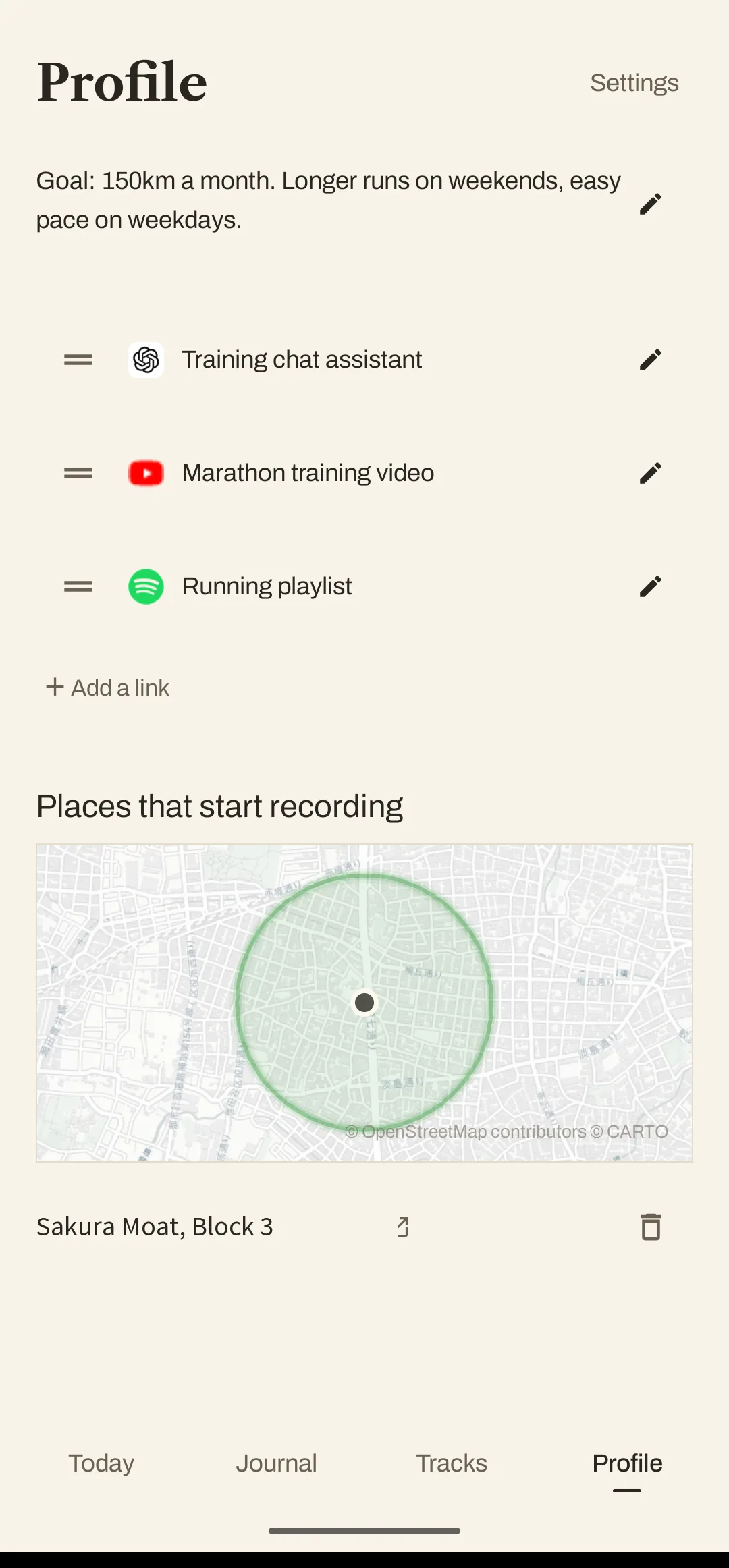
With automatic detection enabled, Haruki starts recording when you begin running near a start point you saved. You save start points from the Today screen, and review them on Profile.

If you would rather not use it, one tap on the switch in Today starts the recording instead.

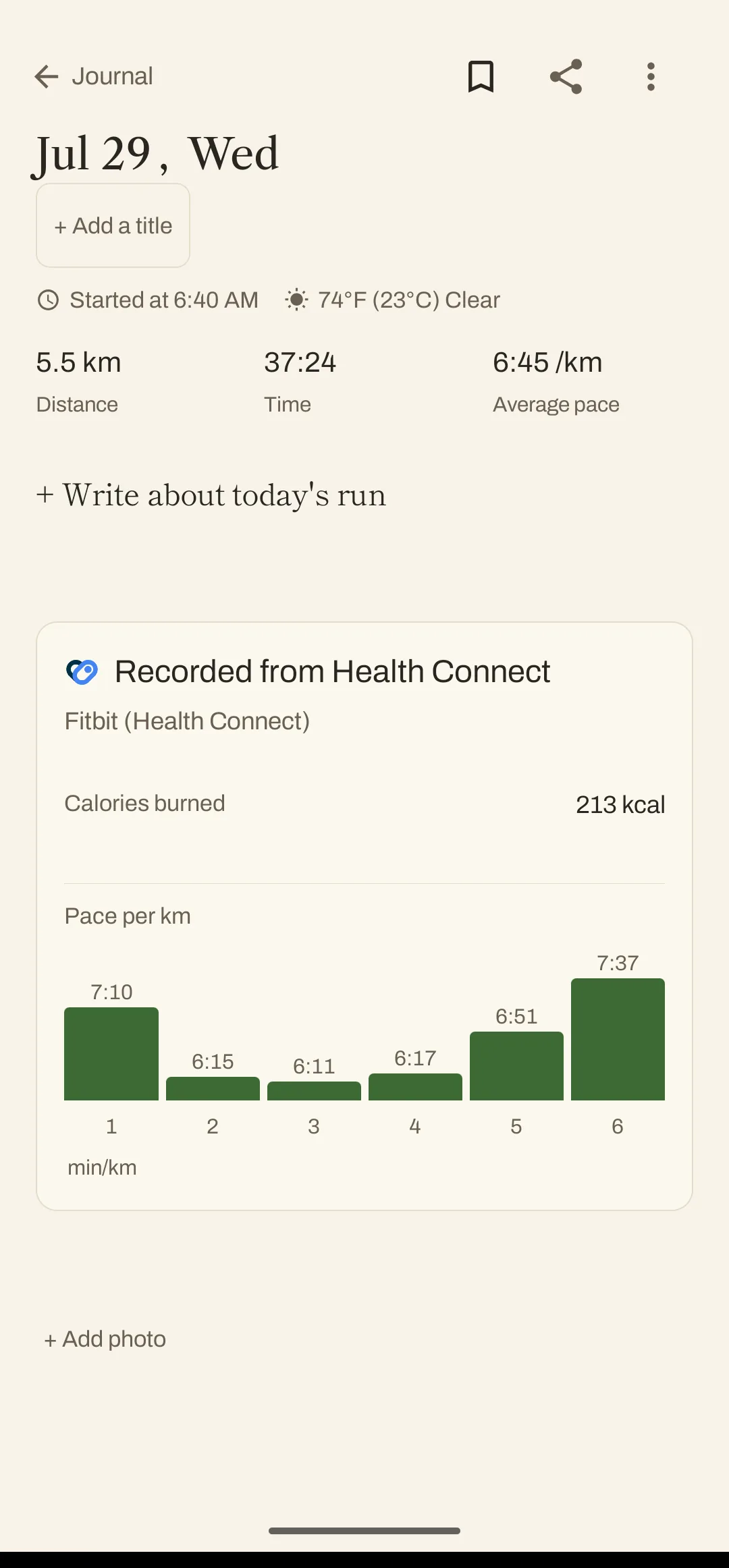
Runs recorded by a compatible app or watch can be imported through Health Connect.

Automatic recording requires a saved start point, the feature enabled, and the necessary activity and location permissions.

Importing through Health Connect is one-way. Available data depends on the source and your permissions.

The Today screen: the name of the area you’re in, a line encouraging you to start, and an on/off switch. The Profile screen: a goal note, links to ChatGPT, YouTube and Spotify, and a map of a place that starts recording automatically.
A run imported through Health Connect, showing the source app and a per-kilometer pace chart.
Today / Profile / Health Connect

Your Records,
Your Choice of Where They Go

Your runs and journal entries are saved on your device first. On a day you want to show, you choose what to include and send it on.

You can keep a copy in Google Drive. A file kept there, or one you export, can be handed to a supported AI service by you. There is no AI inside Haruki.

Saving to Google Drive requires connecting a Google account.

Connection options and supported files vary by service and plan.

What you can export: diary entries, run data, routes, song history, photos
Formats: CSV / GPX / image files and more

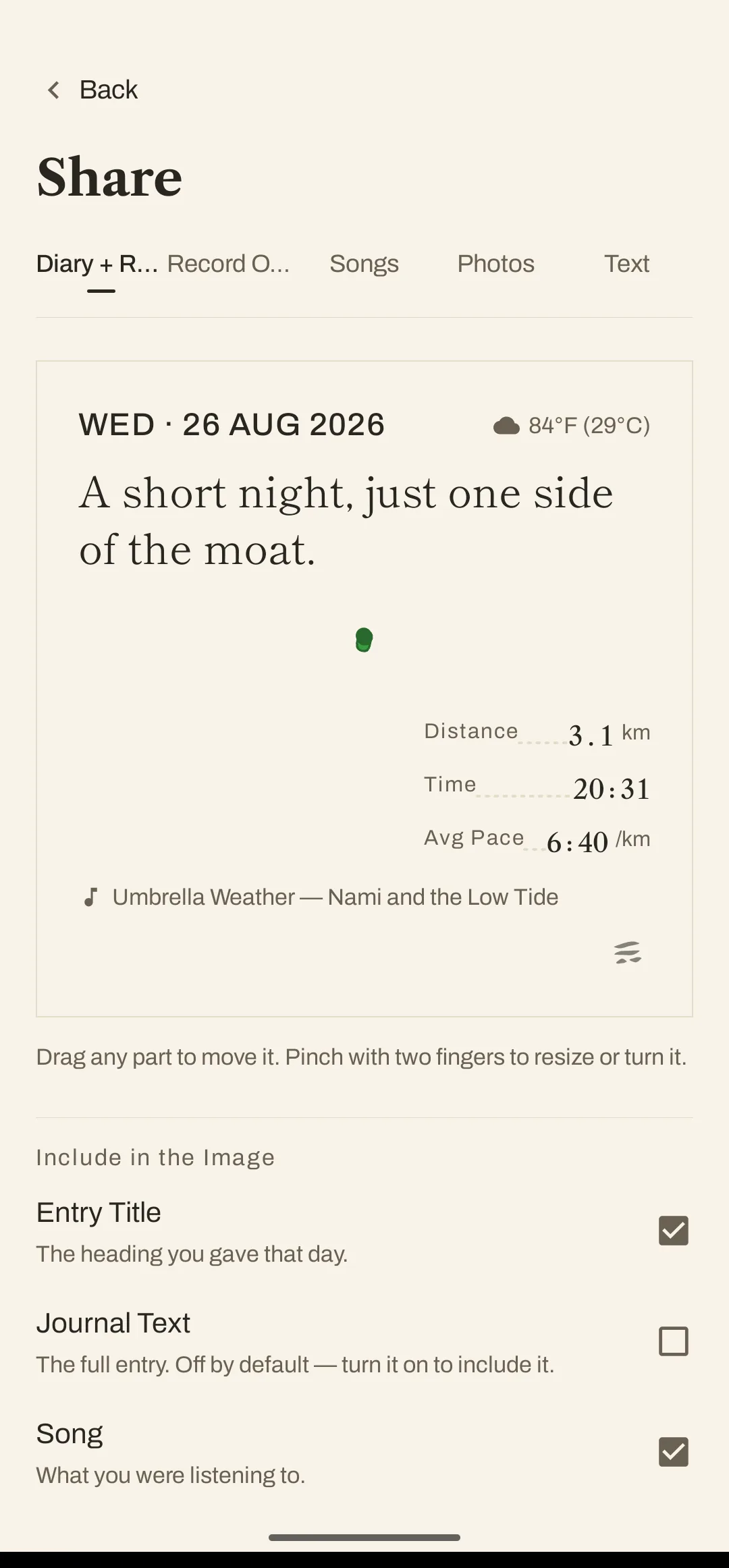
The share screen (sample record). Tabs for Diary + Record, Record Only, Songs, Photos and Text sit above the image being made, and below it “Include in the Image” switches the entry title, the journal text (off by default) and the song on or off.
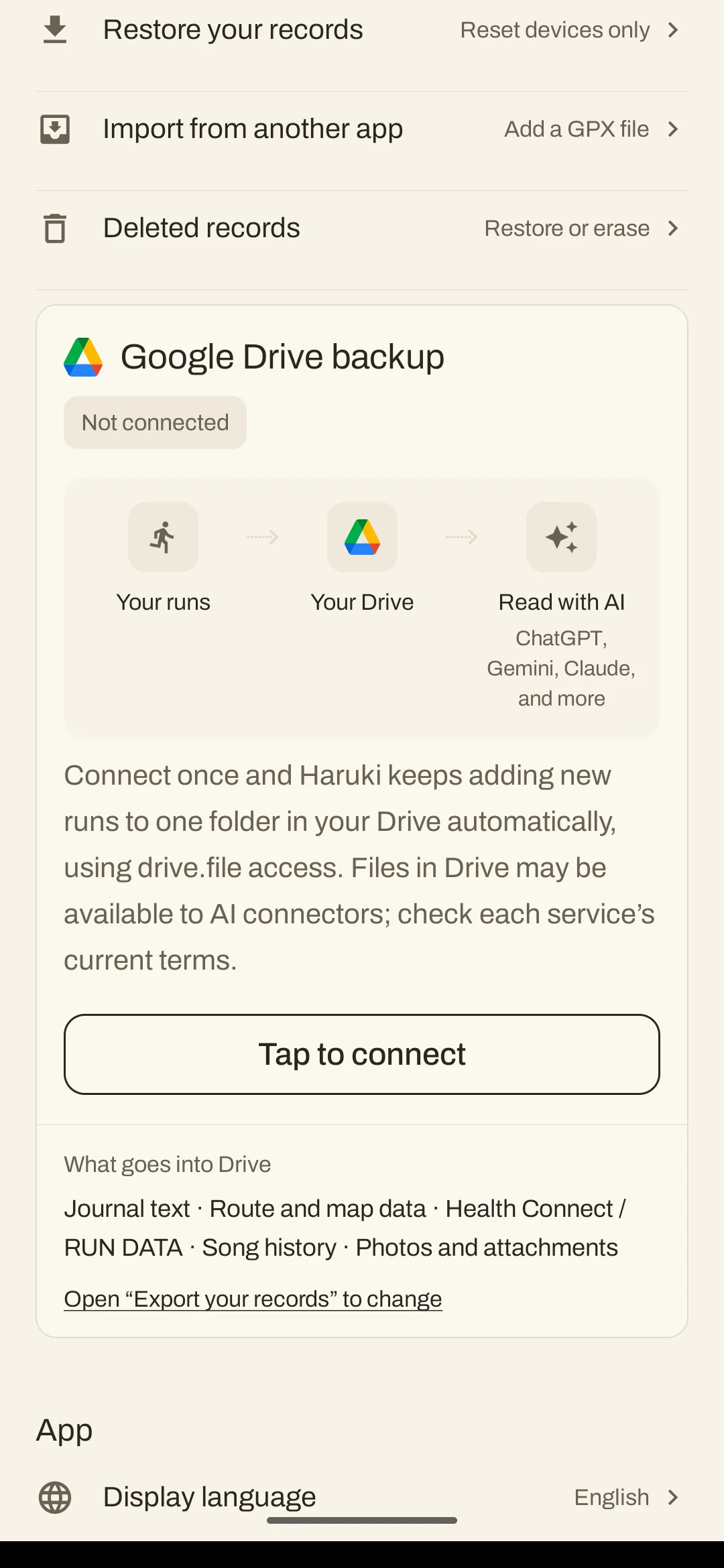
The Google Drive backup card in Settings: your runs, your Drive, and read with AI (ChatGPT, Gemini, Claude, and more), in three steps. Not connected.
Conversation with an external AI service (example)
runs.csv
How was my pace on the river route last month?
Example reply was 3.1 km at an average of 6:40 /km. Across the whole export: 18 days, 145.5 km.
Share / Drive Backup / Reading It Back with an AI

Your Run Is the Point.
Keeping You Here Isn’t.

There are no ads here and no rankings, so there is nothing to gain from holding you on the screen. What follows is only what can be checked.

App Facts

Price$0

Ads0%
Includes Targeted Ads0%
Advertising IDs Collected0%
Given or Sold to Third Parties by Haruki0%
Rankings and Challenges0%
Account RequiredNo
Journal, Photos, Routes, LocationOn your device
Anonymous Usage Signals4, optional

Recording, the journal and looking back are permanently free. The anonymous usage signals are four items and can be stopped at any time in Settings — see the Privacy Policy.

Getting Haruki

Haruki is an Android app. It is free to use and needs no account. It is on Google Play.

Get it on Google Play

The listing is called “Haruki - Running Diary”. Questions: sooksook7110@gmail.com.